Quick Answer
What is a SharePoint List?
SharePoint List Templates
Custom Lists
Built-in List Templates
Issue Tracking: An issue tracking list is designed to record problems, defects, or incidents. It includes fields for status, priority, ownership, and resolution details, making it easier to track issues from creation through closure.
Task List: A task list is used to track work items that have owners, deadlines, and completion states. Each task represents a single unit of work, making it easier to follow progress and update status as work moves forward.
Calendar List: A calendar list stores date-based entries such as events, schedules, or milestones. Items are displayed in a calendar view, allowing information to be seen in the context of days, weeks, or months.
Contacts List: A contacts list is used to store and manage people-related information. It typically includes names, phone numbers, email addresses, and roles, and is often used as a shared reference within a site.
Use Cases of SharePoint Lists
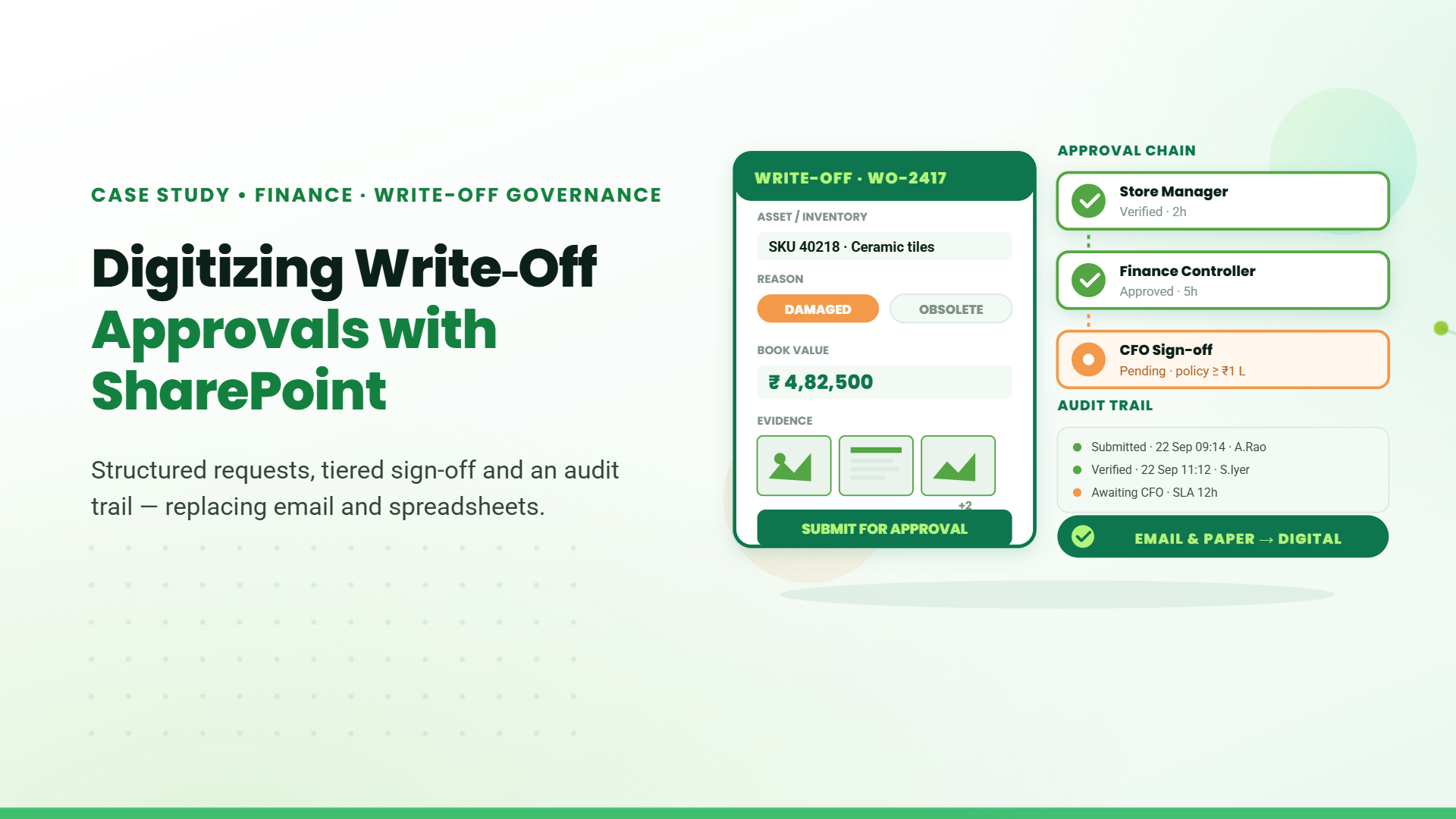
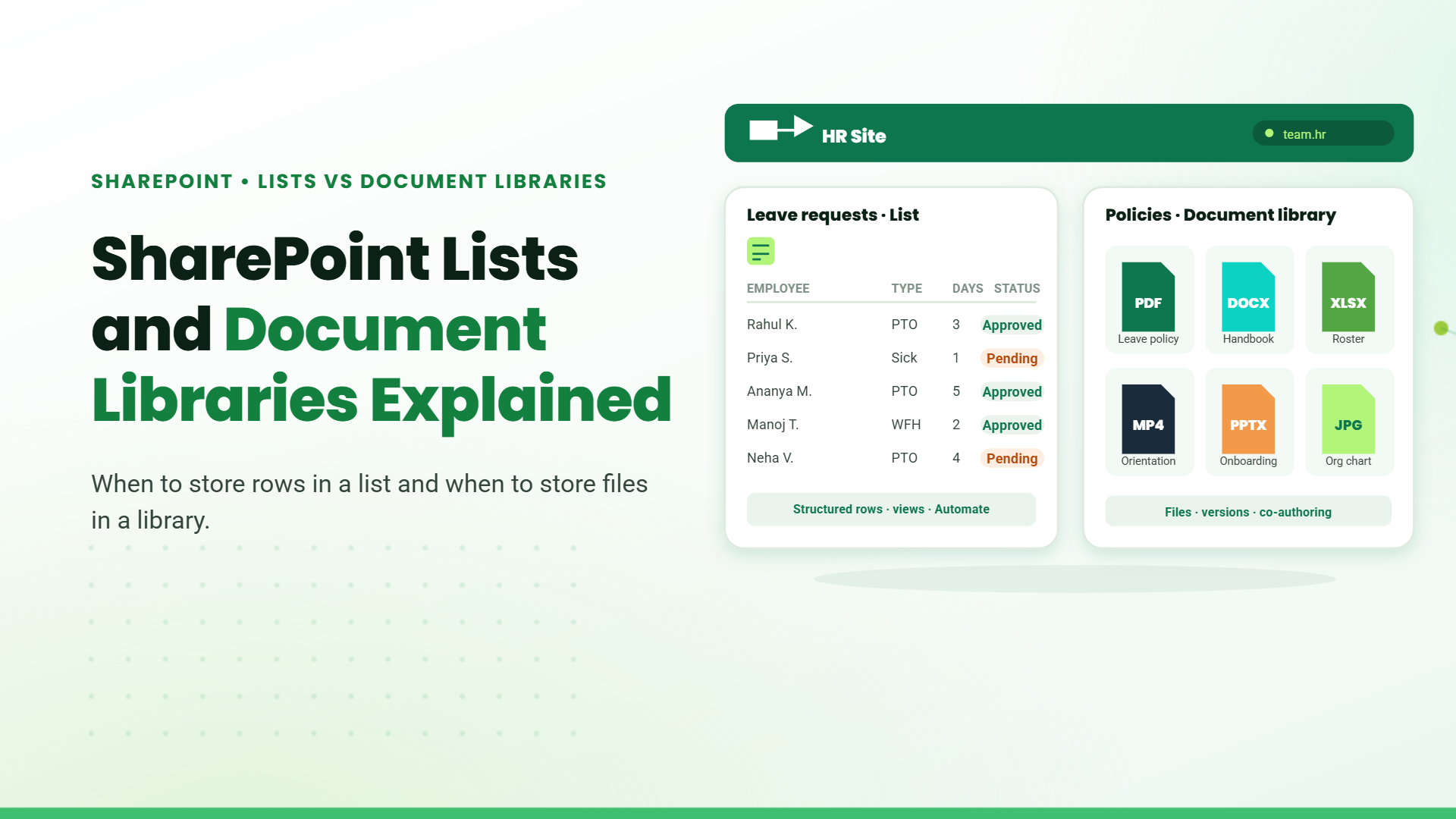
- Approval Requests: Used to capture and track requests such as leave, purchases, or access approvals, where each item moves through defined statuses.
- Asset Register: Maintains records of assets with details like serial number, owner, location, and condition, allowing easy updates and filtering.
- Issue Tracking: Records incidents or problems with fields for priority, status, and resolution, making it easier to monitor and close issues.
- Onboarding Checklist: Tracks onboarding steps for new joiners, with each entry representing a task that can be updated as progress is made.
- Master Data: Stores reference information such as categories, locations, or configuration values used across apps, workflows, or reports.
What is a SharePoint Document Library?
A SharePoint document library is used to store and manage files within a SharePoint site. Each document is saved as a file and can have additional information attached through columns such as category, owner, or status.
Document Library Templates in SharePoint
Custom Document Libraries
Built-in Document Libraries
Site Pages Library: Stores modern SharePoint pages used for intranet content and internal communication. Pages are saved as files and can be versioned and restored when needed.
Site Assets Library: Used to store assets that support pages and site content, such as images, icons, and videos. These assets can be reused across multiple pages within the site.
Style Library: Used mainly in classic SharePoint to store branding-related files such as CSS and JavaScript. This library is typically seen in older or migrated sites.
Use Cases of Document Library
- Project Documentation: Used to store project-related files such as plans, designs, meeting notes, and deliverables, with version history tracking changes over time.
- Policies and SOPs: Maintains controlled documents where only the latest version should be actively used, while older versions remain available for reference.
- Client Files: Stores client-specific documents such as contracts, deliverables, and review files with clear access control and ownership.
- Department Repositories: Acts as a shared document space for departments like HR, Finance, or Sales, replacing traditional shared drives.
- Templates and Reference Files: Stores reusable templates, guides, and reference documents so users always access the latest approved versions.
How do Lists and Document Libraries Work Together?
Linking Records with Documents
Files can also be added directly to a list as attachments, but that approach is typically used for small reference files. List attachments offer limited version tracking and are not ideal for collaboration. When documents need full version history, concurrent editing, or reuse across records, storing them in a document library and linking them to the list item works better.
Using Metadata Across Lists and Libraries
Workflow Automation
Sharepoint List vs Library
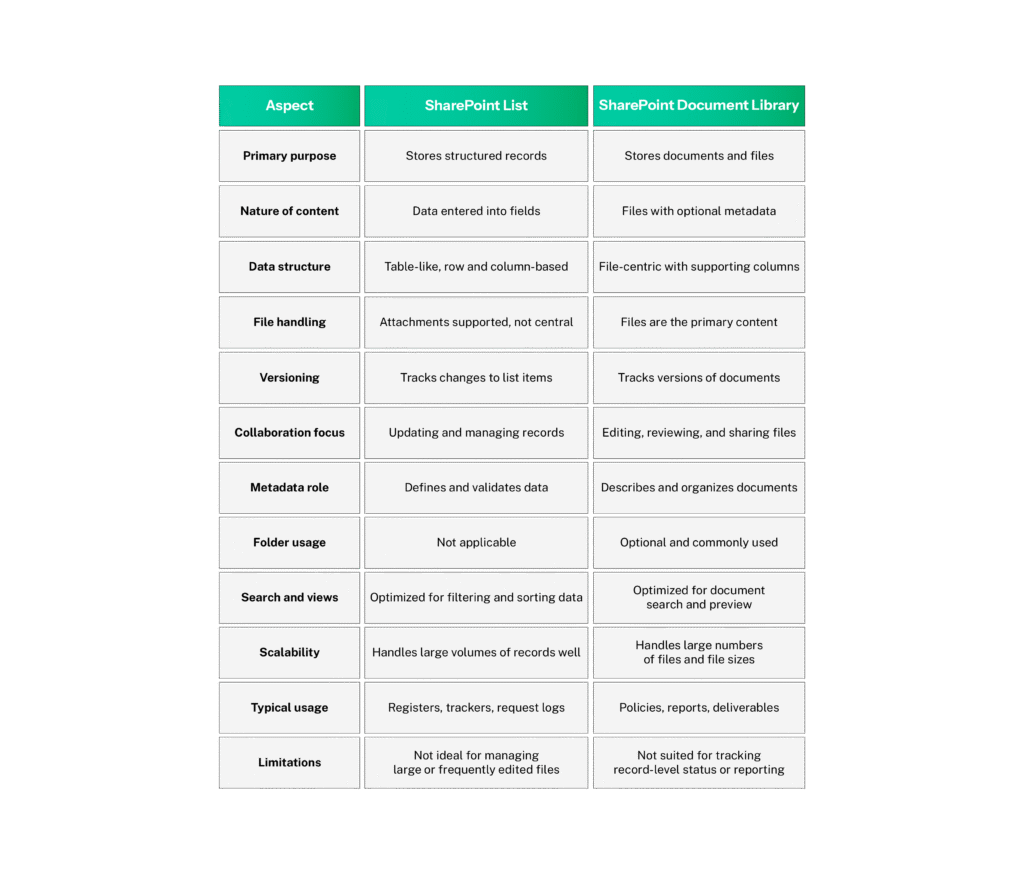
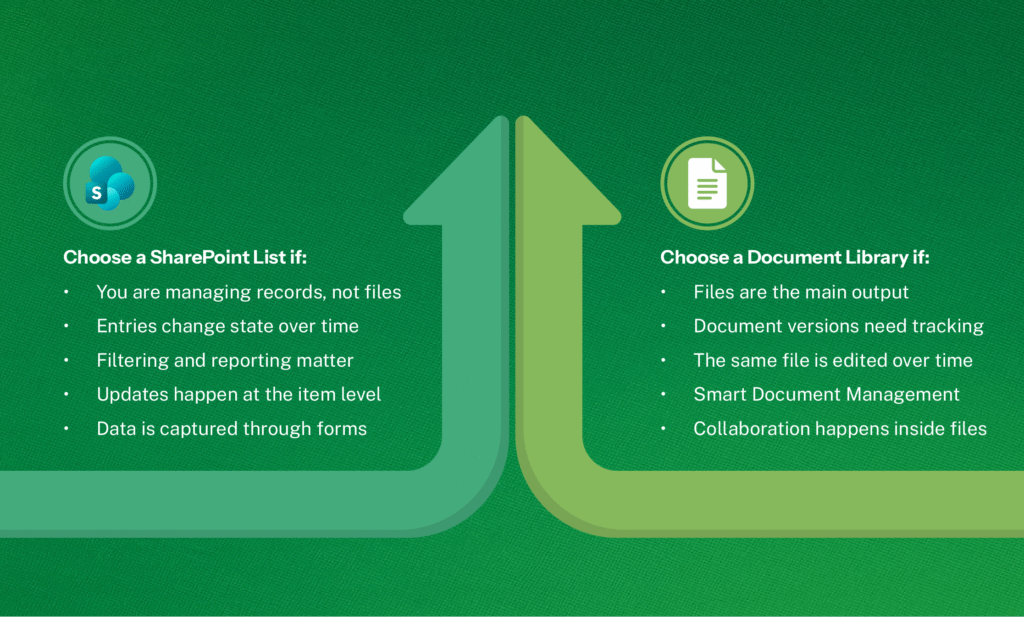
Table of Contents
Talk to our Microsoft Expert Consultant
Conclusion
Lists and document libraries solve different needs in SharePoint, even though they often appear similar at first. Once you’re clear on whether you’re managing records or files, the choice becomes easier to make. That clarity helps keep sites easier to manage over time.
Share this article