Google Workspace vs Microsoft 365
Choosing the right productivity suite can be a game-changer for your business. Both Google Workspace and Microsoft 365 offer powerful tools to streamline collaboration, communication, and productivity. But which one is truly the best fit for your organization? In this comprehensive guide, we’ll dive deep into the features, pricing, AI capabilities, and integrations of these two platforms—focusing specifically on what matters most to business owners.
Introduction: The Battle of Productivity Suites
In the Productivity suites businesses need reliable cloud-based office suites to stay competitive. Google Workspace, formerly G Suite, focuses on real-time collaboration and simplicity. On the other hand, Microsoft 365, previously Office 365, offers advanced offline functionality, enterprise-grade security, and seamless integration with tools like the Power Platform.
This comparison will help small businesses, enterprises, remote teams, and even individual users decide which platform aligns with their goals. Whether you’re a startup founder, a mid-sized business owner, or a C-suite executive, this guide will provide you with actionable insights to make an informed decision.
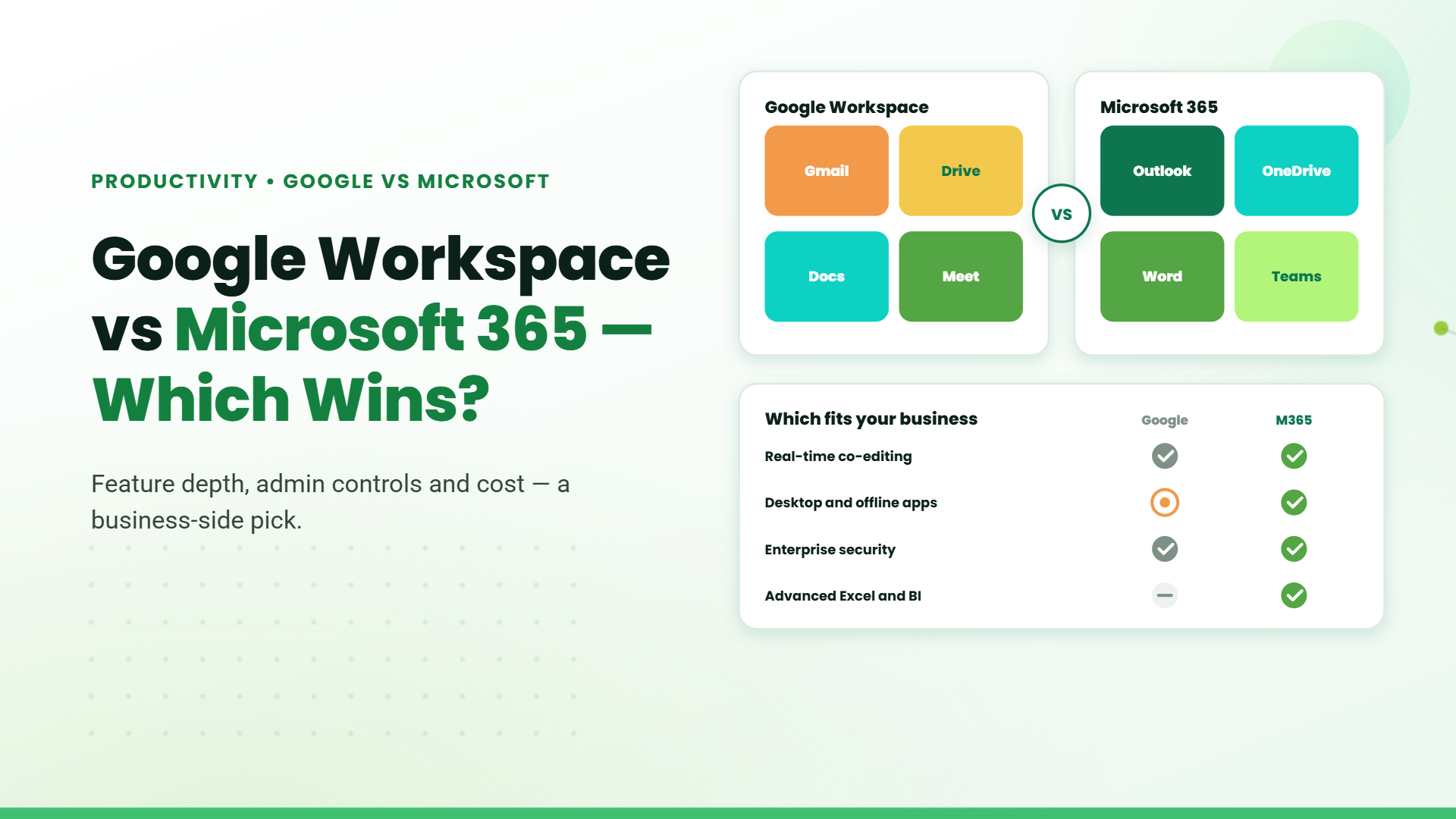
Google Workspace vs Microsoft 365: A Quick Comparison Table
| Feature | Google Workspace | Microsoft 365 |
| Core Apps | Docs, Sheets, Slides, Gmail, Meet, Chat | Word, Excel, PowerPoint, Outlook, Teams |
| Collaboration | Real-time co-editing, in-app chat | Features Co-authoring, Teams for collaboration |
| Storage | 30GB – Unlimited, depending on the plan. | 1TB per user, expandable |
| AI Assistance | Google Gemini AI | Microsoft Copilot AI |
| Pricing | See detailed plans below | See detailed plans below |
| Best For | Startups, remote teams, real-time collaboration | Enterprises, Start-ups, offline access, advanced security |
Google Workspace vs Microsoft 365: Feature-by-Feature Breakdown
Collaboration & Ease of Use for Small Teams
Google Workspace: Known for its real-time collaboration features, such as co-editing in Docs, Sheets, and Slides. It’s simple to set up and use, making it ideal for small teams looking to collaborate seamlessly.
Microsoft 365: Offers robust collaboration tools like Teams, which integrates deeply with Outlook, OneDrive, and SharePoint. Teams provides a centralized hub for chat, meetings, and file sharing, enhancing productivity.
Google Meet vs Microsoft Teams: Best Communication Platform?
Google Meet: Lightweight & User-Friendly: Ideal for quick video calls and casual meetings.
Core Features: Screen sharing (entire screen or Chrome tabs), live captions, background effects, and integration with Google Workspace (Calendar, Drive, Gmail).
Unique Perks: Simpler interface, free tier for up to 100 participants, live polls (via Google Slides), and lower learning curve.
Limitations: Breakout rooms only in paid plans; fewer advanced collaboration tools.
Microsoft Teams
All-in-One Collaboration Hub: Combines meetings, chat, file sharing, and app integrations.
Core Features: Screen sharing (specific apps/windows, PowerPoint Live), breakout rooms (built-in with timers), Together Mode, and deep integration with Microsoft 365 (Outlook, OneDrive, SharePoint).
Unique Perks: Real-time co-editing of Office files, Power Platform automation, hybrid-friendly tools (whiteboard, project channels), and higher meeting capacity (up to 10,000 attendees on paid plans).
Limitations: Steeper learning curve; free tier limits storage and features.
Google Workspace vs Microsoft 365 for Enterprise-Level Businesses
Security and Compliance:
Google Workspace: Supports HIPAA, GDPR, and ISO certifications, ensuring data privacy and security.
Microsoft 365: Offers advanced threat protection, multi-factor authentication, and compliance certifications for industries like healthcare and finance.
Enterprise-Grade Admin Controls
Google Workspace: Provides basic admin controls, but lacks the granular control offered by Microsoft 365.
Microsoft 365: Offers a robust admin center with detailed user permissions, policies, and data governance features.
Microsoft 365: Offers a robust admin center with detailed user permissions, policies, and data governance features.
Third-Party Integrations: Google Workspace vs Microsoft 365 – Connecting Your Business Ecosystem.
Google Workspace
Native Integration: Built-in tools like Google Docs, Sheets, Meet, and Drive for seamless collaboration, real-time editing, and cloud storage.
Third-Party Integration: Connects with external platforms like Salesforce, Slack, Trello, Zoom, and HubSpot via the Google Workspace Marketplace (700+ apps), enabling lightweight automation with Zapier and analytics via Looker/Tableau.
Google Workspace vs Microsft Office 365 Price Plans details
Family Plans
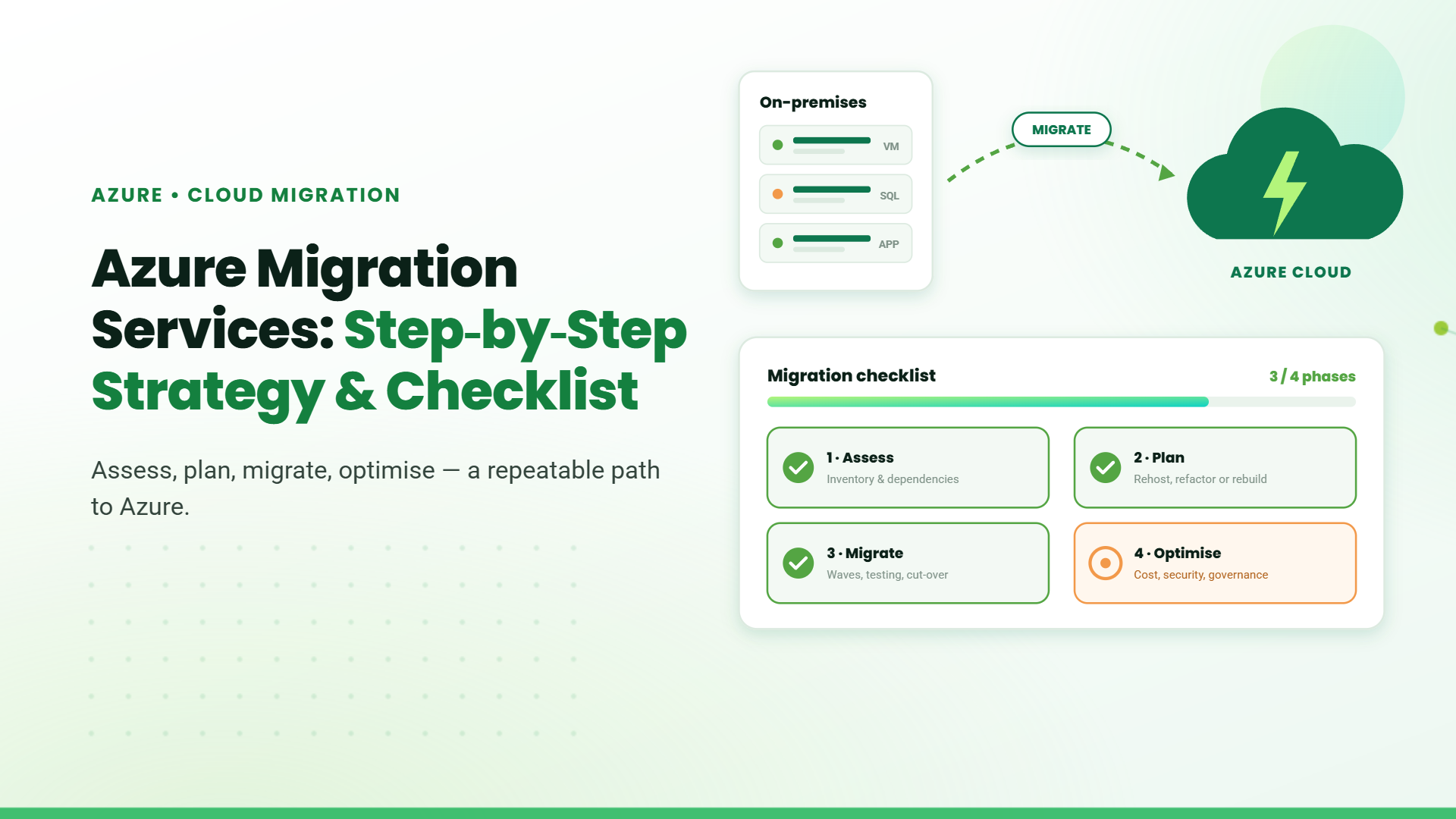
Choosing the right migration approach helps organizations control costs, reduce disruption, and create a cloud environment that supports long-term business needs.
- Google One: Offers 2TB of storage for $9.99/month.
- Microsoft 365 Family: Allows up to six users for $99.99/year (equivalent to $8.33/month per user).
AI Features for Students and Educators
Google Workspace: Integrates Google Gemini AI to enhance tasks in Gmail and Docs.
Microsoft 365: This incorporates Microsoft Copilot AI, providing AI-powered assistance in applications like Word and Excel.
Offline Access: Google Workspace vs. Microsoft 365
Google Workspace: While primarily designed for online use, Google Workspace does offer offline functionality with some setup. For example, Gmail users can enable offline mode through a Chrome extension, allowing them to read and compose emails even without an internet connection. Google Docs, Sheets, and Slides also support offline editing, but users need to activate this feature in advance.
Microsoft 365: Microsoft 365 provides a more seamless offline experience, especially with its desktop applications. Users can work on Word documents, Excel spreadsheets, and PowerPoint presentations without internet access. Once they reconnect, all changes automatically sync, ensuring uninterrupted productivity.
Pricing Comparison: Which is More Cost-Effective?
Both Google Workspace and Microsoft 365 have introduced new pricing plans, reflecting the integration of advanced AI features into their services. Here’s a detailed overview:
Google Workspace Pricing Plans:
Google has incorporated its Gemini AI features directly into all Workspace plans, leading to a price adjustment.
Business Starter
- Annual Plan: $7 per user/month
- Flexible Plan: $8.40 per user/month
Business Standard
- Annual Plan: $14 per user/month
- Flexible Plan: $16.80 per user/month
Business Plus
- Annual Plan: $22 per user/month
- Flexible Plan: $26.40 per user/month
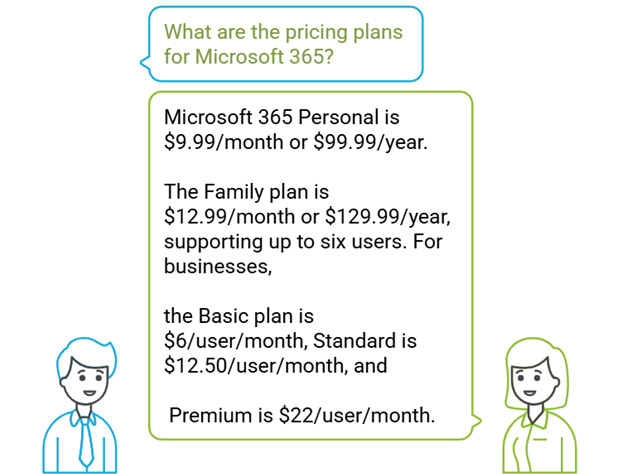
Microsoft 365 Pricing Plans
Microsoft has integrated its Copilot AI features into the Microsoft 365 Personal and Family subscriptions, resulting in a price increase.
Microsoft 365 Personal
- $9.99 per month or $99.99 per year
Microsoft 365 Family
- $12.99 per month or $129.99 per year
Microsoft 365 Business Basic
- $6 per user/month
Microsoft 365 Business Standard
- $12.50 per user/month
Microsoft 365 Business Premium
- $22 per user/month
Both companies have integrated AI capabilities into their productivity suites, aiming to enhance user experience and efficiency. While this has led to price adjustments, the added functionalities offer significant value to users.
Google Workspace vs Microsoft 365: AI Showdown – Gemini AI vs Microsoft Copilot
Google Gemini AI
Google Docs: Assists with document creation, formatting, and suggestions.
Google Sheets: Provides insights and automates complex calculations.
Gmail: Enhances email drafting with smart replies and suggestions.
Microsoft Copilot AI
Word: Assists with writing, grammar checking, and content suggestions.
Excel: Automates data analysis, visualizations, and reports.
Outlook: Summarizes emails and suggests actions.
Teams: Enhances meeting notes and transcription.
Why Microsoft 365 is the Best Google Workspace Alternative
Advanced Offline Access
Unlike Google Workspace, Microsoft 365 works flawlessly offline, offering uninterrupted productivity even without internet connectivity.
Superior Desktop Applications
Enterprise-Level Security and Compliance
Microsoft 365 offers advanced threat protection, multi-factor authentication, and compliance certifications for industries like healthcare and finance, ensuring your data is secure.
Power Platform Integration
What it does
Lets you build custom apps (no coding required) for mobile or desktop. Connect to data sources like Excel, SharePoint, or SQL databases.
Example
Create an inventory tracker for warehouse teams or a field service app for technicians.
Key Features
Pre-built templates (e.g., CRM, project management).
Integrates with Teams, Outlook, and Power Automate.
Power Apps
What it does
Transforms raw data into interactive dashboards and reports.
Pulls data from 500+ sources (Excel, Salesforce, Azure SQL).
Example
AI-powered insights (e.g., anomaly detection).
Collaborate via Teams or embed reports in apps.
“Quick Insights” auto-generates charts from datasets.
Power Automate
What it does
Automates workflows across apps (e.g., approvals, notifications, data sync).
Example
Auto-save email attachments to OneDrive → notify teams in Teams → log actions in Excel.
Key Features
1,000+ connectors (e.g., SAP, Slack, Google Workspace). Copilot AI automates tasks like document processing.
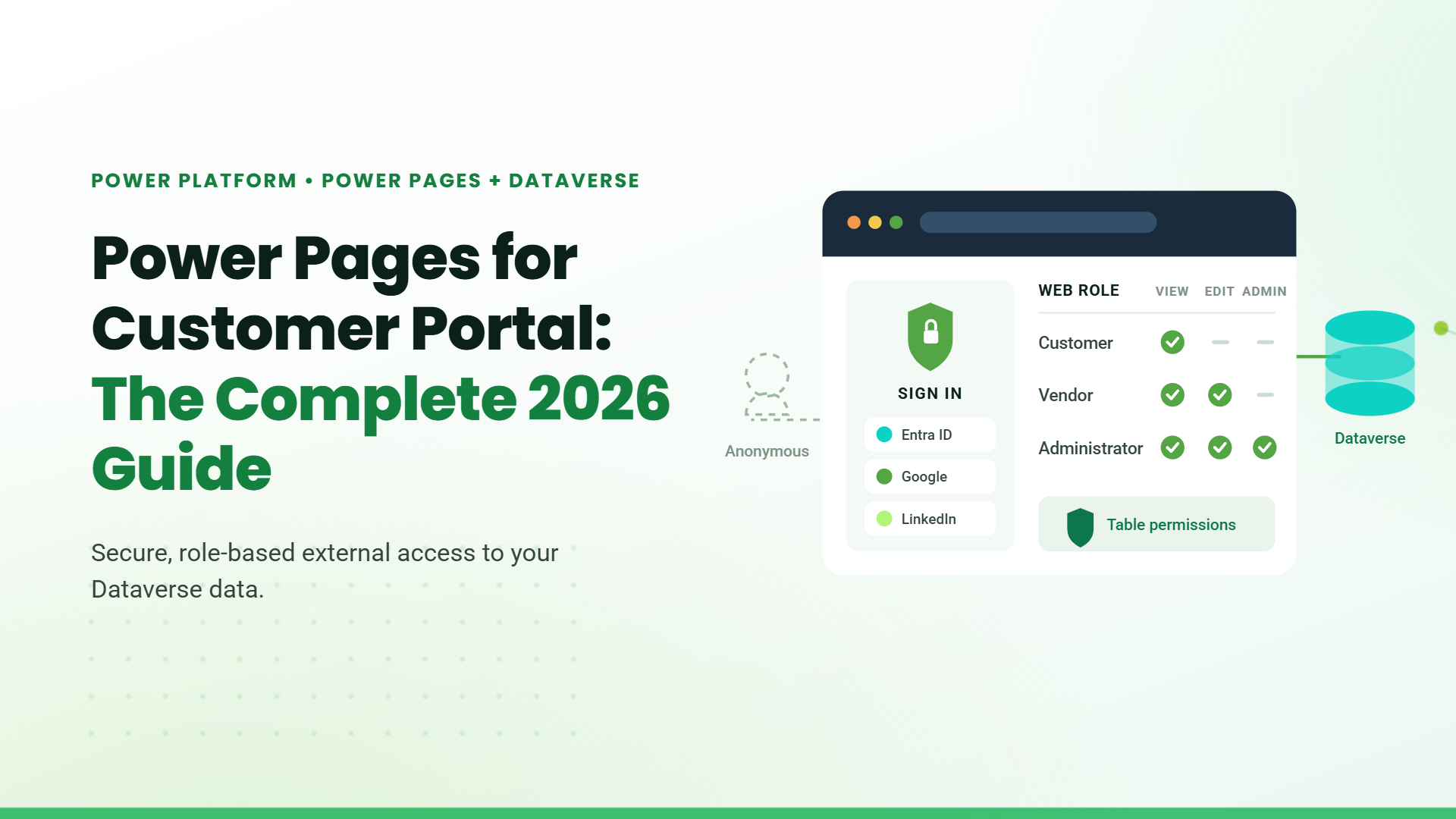
Power Pages
What it does
Builds secure, external-facing websites (e.g., customer portals, registration forms).
Example
Create a client support portal where users submit tickets and track progress.
Key Features
Low-code design with templates.
Integrates with Power Apps and Dataverse (Microsoft’s data backbone).
Role-based access controls for security.
Migrating from Google Workspace to Microsoft 365: A Simple Guide for Business Owners
Move Emails, Calendars, and Contacts
Microsoft offers built-in migration tools to help transfer your emails, calendars, and contacts from Google Workspace to Microsoft 365. The process supports staged migrations, allowing you to move users in batches at your convenience.
Transfer Files from Google Drive to OneDrive
Train Your Team on Microsoft 365 Tools
To make the transition smooth, ensure your employees are familiar with Microsoft 365 apps such as Outlook for email, Teams for communication, and the Power Platform for automation and analytics. Microsoft provides various training resources to help your team get up to speed.
Consider Third-Party Migration Tools
If you need additional support, third-party tools like VaultMe can automate the entire migration process, including emails, files, contacts, and calendars. These tools provide extra features to streamline the transfer and reduce manual work.
Important Considerations
- Migration can be complex, and proper planning is crucial.
- Work with IT professionals or refer to Microsoft’s official documentation for a smooth transition.
- Ensure employees have the necessary training and support throughout the process.
By following these steps, your business can successfully transition to Microsoft 365 with minimal disruption.
Table of Contents
- 1. Google Workspace vs Microsoft 365
- 2. Introduction: The Battle of Productivity Suites
- 3. Google Workspace vs Microsoft 365: A Quick Comparison Table
- 4. Google Workspace vs Microsoft 365: Feature-by-Feature Breakdown
- 5. Google Workspace vs Microsoft 365 for Enterprise-Level Businesses
- 6. Third-Party Integrations: Google Workspace vs Microsoft 365 – Connecting Your Business Ecosystem.
- 7. Google Workspace vs Microsft Office 365 Price Plans details
- 8. Google Workspace vs Microsoft 365: AI Showdown – Gemini AI vs Microsoft Copilot
- 9. Why Microsoft 365 is the Best Google Workspace Alternative
- 10. Migrating from Google Workspace to Microsoft 365: A Simple Guide for Business Owners
- 11. Conclusion
- 12. FAQs
Talk to our Microsoft Expert Consultant
Conclusion
Share this article

About the Author
Frequently Asked Questions
The answer depends on your priorities. If you value real-time collaboration, Google Workspace is ideal. For advanced features and offline access, choose Microsoft 365.
Microsoft 365 combines powerful desktop apps, enterprise-grade security, and the innovative Power Platform for unparalleled flexibility.
Yes! Use Microsoft’s migration tools to transfer emails, documents, and contacts seamlessly.
Google Workspace is easier to use, but Microsoft 365 offers more features, especially for growing teams.