Many businesses want AI to handle useful work such as answering questions, drafting content, generating reports, and synchronizing data across platforms, and they want to do this in a way that is quick to set up and easy to adjust over time.
Microsoft Copilot Studio enables businesses to build AI agents that work alongside existing systems and processes. This article explains what Copilot Studio is, how it connects to the rest of the Microsoft stack, and how to build your first AI agent.
Microsoft Copilot Studio handles repetitive work across departments, from answering employee questions to automating back-end tasks without writing code.
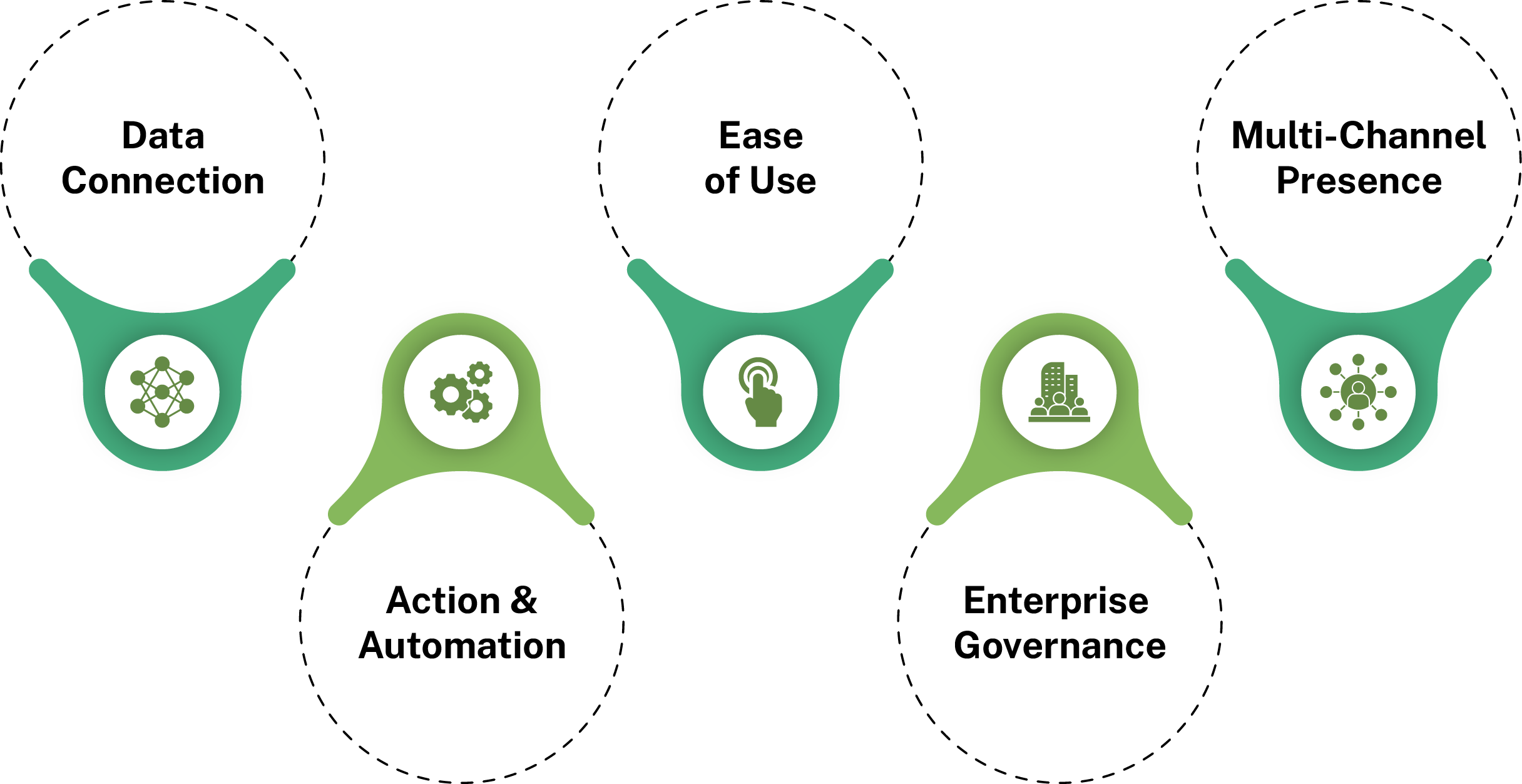
Defines the agent’s persona, scope, and boundaries. Controls what it can help with, what topics to avoid, how it should respond, and what actions it is allowed to take on behalf of your users across every interaction, task, and scenario.
Files, websites, and databases the agent uses for grounding. Keep every single response fully accurate to your approved internal content instead of pulling answers from unrelated, unreliable, or outdated sources sitting completely outside your organization at any given point today.
Tools help the agent perform business actions and automate workflows across connected systems. They can send emails, retrieve live data, update records, and interact with external platforms through built-in connectors and integrations.
Copilot Studio supports a multi-agent architecture, where multiple specialized agents work together across different business functions. One agent may handle HR requests while another manages finance approvals or IT support, allowing businesses to scale automation more effectively across departments.
Activity tracking provides visibility into how agents interact with users, trigger workflows, and execute tasks. Teams can review conversation history, monitor workflow execution, identify failures, and troubleshoot issues to improve agent reliability and operational performance.
Evaluation tools help businesses measure agent performance across conversations, workflows, and business actions. Teams can assess response quality, accuracy, completion rates, and user interactions to continuously improve how the agent performs over time.
Analytics provide insights into agent usage, engagement trends, resolution rates, and operational efficiency. Businesses can use these insights to identify bottlenecks, optimize workflows, and better understand how AI agents support users across different channels and processes.
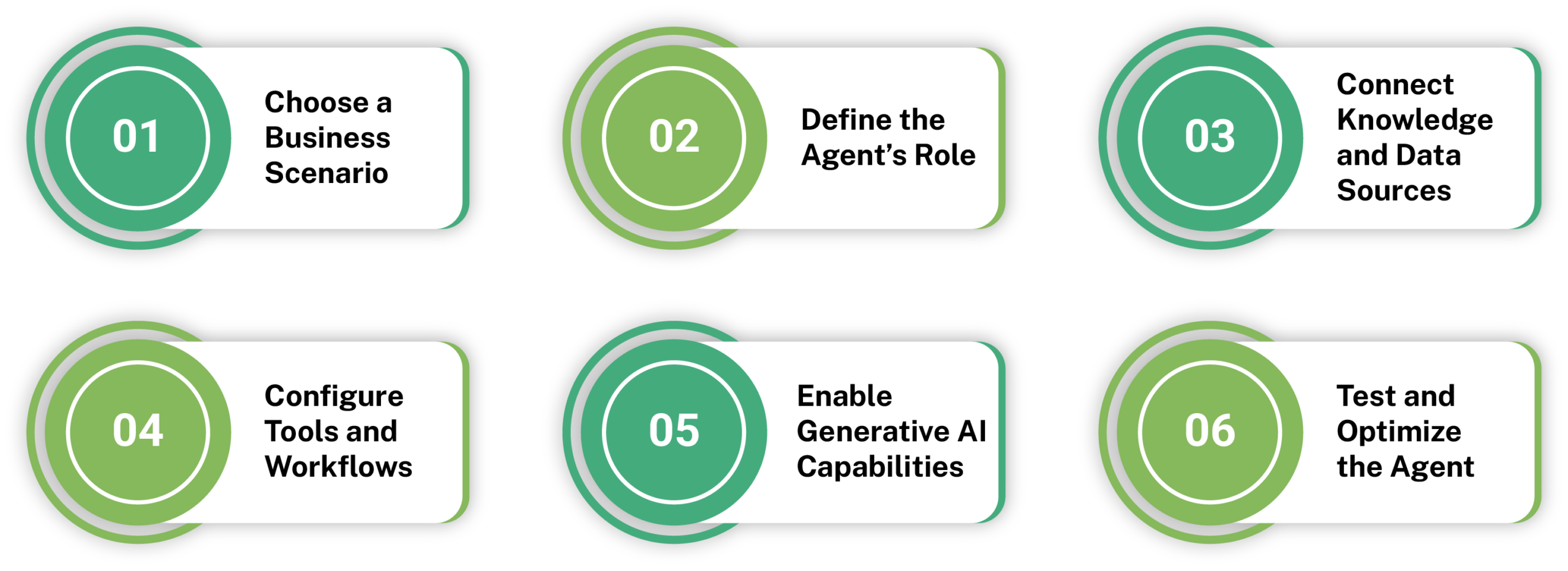
Start with a repetitive business process where employees spend too much time collecting information, analyzing data, or responding manually. For example, a Market Landscape Research Agent can help sales and marketing teams gather market insights, analyze competitor activity, and generate recommendations automatically.
Create the agent in Copilot Studio and clearly define what it should do. In this case, the agent is designed to collect internal and external market data, identify trends, and generate actionable insights for business teams.
Attach the business data and content the agent should use. This can include CRM systems, research reports, SharePoint files, external news sources, meeting transcripts, and internal strategy documents. The agent uses this information to generate grounded and business-relevant responses.
Use built-in tools, connectors, agent flows, and workflows to help the agent interact with business systems. The agent can retrieve information from connected platforms, organize findings, trigger automated processes, and generate reports without requiring manual effort.
Copilot Studio also allows agents and workflows to work together across business processes. Workflows handle structured and rule-based tasks, while agents interpret natural language, analyze requests, and generate contextual responses.
For instance, a Market Landscape Research Agent can analyze research inputs and trigger processes that generate reports, update records, or share insights with business teams automatically.
Enable generative AI so the agent can analyze information, summarize findings, and create natural responses instead of relying only on predefined answers. This helps the agent generate insights, recommendations, and reports dynamically based on available data.
Before deployment, test how the agent responds across different scenarios and data sources. Businesses can monitor activity, evaluate response quality, and refine workflows to improve accuracy, reliability, and overall performance over time.
Once your agent is handling day-to-day tasks, the next priority is choosing the right model and putting the right controls in place.
As businesses deploy more agents, model choice and governance become important. Copilot Studio supports multiple approved language models, allowing makers to match the model, creativity, and grounding settings to each use case.
For governance, Microsoft Entra Agent ID gives every agent its own identity, so admins can manage access, monitor actions, and apply policies. Security tools such as Microsoft Defender also help detect risks like suspicious behavior or prompt injection attempts.
This is how Microsoft Copilot Studio for business lets teams build low code AI agents while IT admins maintain full visibility and control.