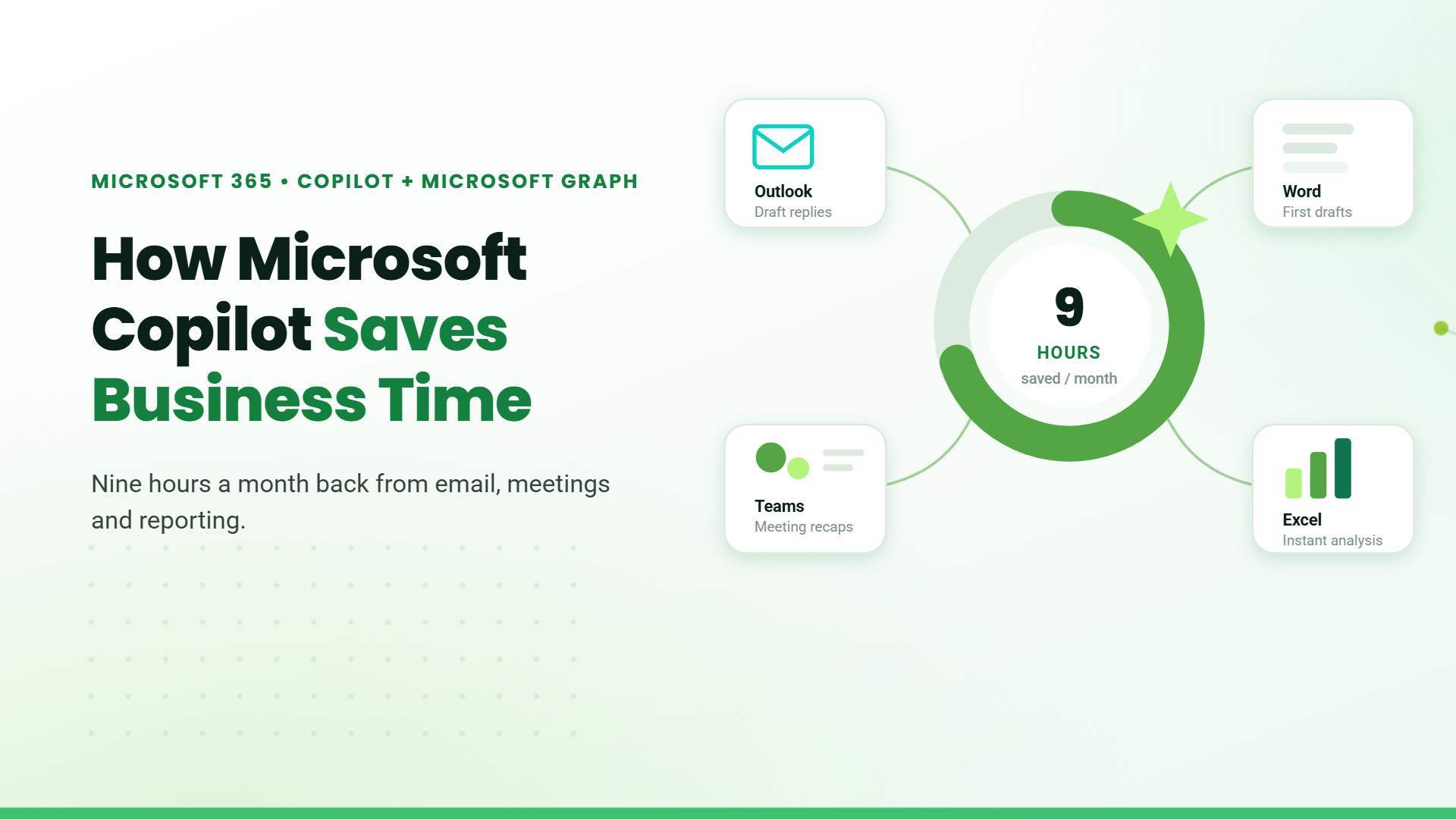
How Microsoft Copilot Saves Business Time

The average knowledge worker spends 57% of their workweek on communication – emails, meetings, status updates, and follow-ups rather than the skilled work they were actually hired to do. That’s more than four hours every day spent on coordination, not creation. Microsoft 365 Copilot was built to reclaim that time. This guide covers which tasks it automates, how much time you can realistically expect to save, and whether it’s worth the investment.

What Is Microsoft Copilot and How Does It Save Time for Businesses?

Microsoft 365 Copilot is an AI assistant embedded inside your existing Microsoft 365 apps. It uses large language models combined with your organization’s own data, emails, documents, meetings, and spreadsheets – through something called Microsoft Graph.

How Microsoft Copilot Works Inside Microsoft 365 Apps

Copilot doesn’t live in a separate window or require you to copy-paste content into a chatbot. It sits inside the apps you already open every morning:
  • Outlook – Draft replies, summarize email threads, surface action items
  • Teams – Transcribe meetings in real time, generate summaries and next steps
  • Word – Write first drafts, rewrite for tone, turn notes into polished documents
  • Excel – Analyze datasets, identify trends, generate charts from plain English prompts
  • PowerPoint – Build presentations from a Word doc, an outline, or a few bullet points
  • Copilot Chat – A cross-app AI chat that pulls from your emails, files, and calendar
It’s important to understand that Copilot works with your existing data. You don’t need to set up new integrations or migrate anything. If your team already lives in Microsoft 365, Copilot plugs in immediately.

Which Business Tasks Copilot Automates Automatically

Copilot handles tasks that are repetitive, language-heavy, and time-consuming but don’t require deep human judgment:
  • Drafting replies to routine emails, tone and clarity adjustments
  • Summarizing meetings you attended or missed, and can provide a meeting transcription.
  • Turning raw notes or bullet points into formatted documents
  • Generating charts and trend summaries from spreadsheet data
  • Creating slide decks from existing Word documents or outlines
  • Catching up on long email threads with a single-click summary

Who Benefits Most - Small Businesses, Mid-Market, or Enterprise?

The short answer: everyone benefits, but the nature of the benefit differs by size.
1. Small businesses and solopreneurs – They gain the most proportionally. Copilot effectively gives a one-person operation the output of a small team. A solo consultant who handles client proposals, email, invoicing, and presentations can compress hours of admin work into minutes.
2. Mid-market teams: They benefit from consistency. Copilot ensures documents, emails, and reports maintain a professional standard regardless of who writes them.
3. Enterprise teams: Teams see the largest absolute time savings – with thousands of employees each saving even 30 minutes a day, the organizational impact compounds quickly.
4. What Copilot is NOT: Copilot is not a replacement for human judgment, creative strategy, or relationship-building. It doesn’t make decisions for you. It handles the groundwork so you can focus on the thinking that actually moves the needle

How Much Time Does Microsoft Copilot Save Per Week?

Quick Answer: According to a Forrester Total Economic Impact study commissioned by Microsoft (March 2025), Microsoft 365 Copilot users save an average of 9 hours per month – roughly 2.25 hours per week. Microsoft’s own Work Trend Index research found users were 29% faster on tasks involving writing, searching, and summarizing, and could catch up on a missed meeting nearly 4× faster.
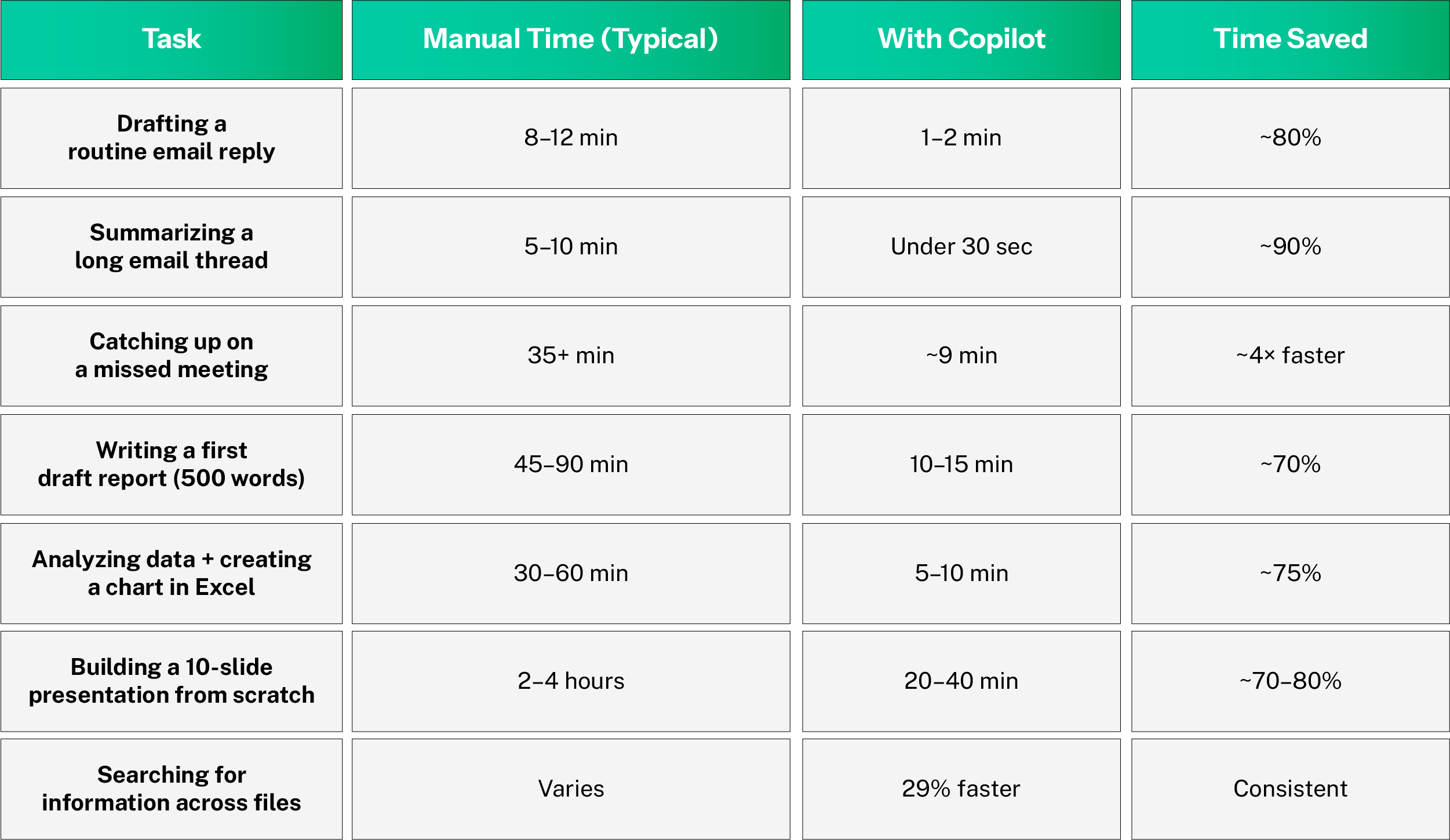
Quick Answer: Yes — Microsoft Copilot can automatically summarize meetings in Teams immediately after they end, listing key decisions, action items, and unresolved questions. In Outlook, Copilot drafts email replies based on the full thread context. Together, these two automations alone save most business users 2–3 hours per week.

How Copilot in Teams Summarizes Meetings Automatically

When transcription is enabled in Microsoft Teams, Copilot records and processes the conversation in real time. The moment a meeting ends, it generates a structured summary that includes:
  • What was discussed — key talking points and context
  • Decisions made — confirmed action items or agreed outcomes
  • Open questions — items that need follow-up
  • Action items by person — who owns what and by when
This summary appears in the Teams meeting chat and the Recap tab, accessible to anyone in the meeting (or even those who missed it). It typically takes Copilot under 60 seconds to produce a summary for a 60-minute meeting.
For businesses that run 4–8 meetings a week, this eliminates the need for a designated note-taker entirely, and removes the 20–35 minutes typically spent writing up meeting notes afterward.

How Copilot in Outlook Drafts Email Replies from Thread Context

Copilot in Outlook reads the entire email thread — not just the most recent message — before drafting your reply. This means it understands who said what, what’s been agreed, and what the actual question is asking for.
You provide a brief instruction (or none at all for simple replies), and Copilot generates a complete draft. The key advantage over generic AI tools is that Copilot uses your name, your company’s context, and your tone calibration from previous messages in the thread.
It’s particularly effective for:
  • Lengthy client threads where context is buried deep
  • Status update emails where you need to be professional but brief
  • Declining or rescheduling requests diplomatically

Microsoft 365 Copilot Business Use Cases by Department
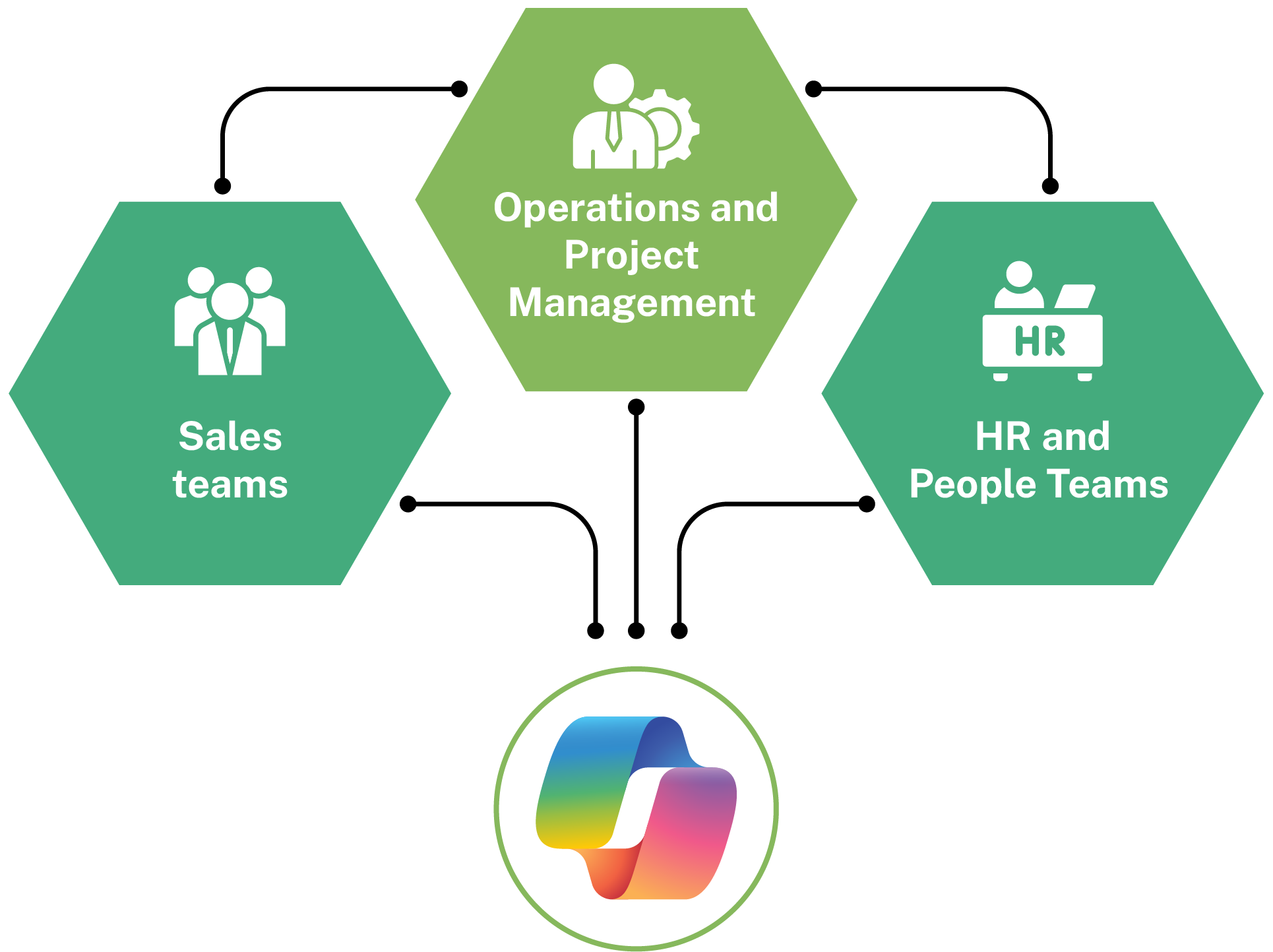
One of the most common questions businesses ask before adopting Copilot is: where does it actually fit into our day-to-day work? The answer varies by role, but the pattern is consistent — Copilot delivers the most value wherever your team spends time on high-frequency, language-heavy tasks that don’t require deep human judgment. Here are three of the most impactful departmental use cases.

Sales Teams — Faster Proposals, Better Follow-Ups, More Time Selling

Sales professionals spend a disproportionate amount of their time on tasks that aren’t selling. Writing proposals, summarizing discovery calls, updating CRM notes, drafting follow-up emails — a study of B2B sales teams found that the average salesperson spends less than 35% of their week in actual selling activity. Copilot attacks the other 65% directly.
With Copilot in Word, sales teams can generate tailored client proposals in minutes from a standard template and a few context prompts. In Outlook, post-meeting follow-up emails draft themselves from the meeting context. In Teams, discovery call summaries with key pain points and next steps are ready before the rep has even hung up. For sales managers, Copilot in Excel can analyze pipeline data and flag deals at risk without requiring a CRM export or a BI tool.
The net result: more time in front of customers, fewer hours on administrative overhead, and a consistent professional output regardless of how senior the rep is.

Operations and Project Management — Status Updates Without the Manual Work

Project managers and operations leads are the connective tissue of any business — but a significant portion of their time goes to coordination overhead: status updates, meeting preparation, progress reports, and cross-team communication. These tasks are essential but don’t require the strategic judgment that makes a great operator valuable.
Copilot handles the coordination layer automatically. In Teams, meeting summaries with action items and owners are generated the moment a project standup ends. In Word, weekly status reports can be drafted from a bullet-point input in under five minutes. In Outlook, stakeholder update emails are drafted from existing project documents without the ops lead having to manually synthesize information from three different sources.

HR and People Teams — Faster Hiring, Cleaner Documentation

Human resources sits at a unique intersection of high document volume and high sensitivity — a combination that has historically made AI assistance feel risky. Copilot handles the volume side reliably while keeping humans firmly in the loop on the judgment side.
For hiring, Copilot in Word can draft job descriptions, offer letter templates, and onboarding documentation from a brief prompt describing the role and requirements. During interviews, Copilot in Teams captures the conversation and generates structured notes by candidate, reducing the post-interview documentation burden from 20–30 minutes per conversation to under 5. For HR policies, Copilot can reformat, update, or simplify existing documentation when regulations or company standards change.

Microsoft Copilot Productivity Features for Businesses That Actually Matter

Most productivity software promises to save you time. Microsoft 365 Copilot is one of the few that delivers results you can actually measure — not because it replaces the work, but because it eliminates the friction around it. The difference between a productive day and a reactive one often comes down to how much time you spend on setup, formatting, and administrative groundwork before you can do the real work. Copilot compresses that overhead.
Here are the three productivity features that business users report using most — and getting the most value from.

Intelligent Document Drafting Across Word and Outlook:

The blank page is the enemy of productivity. Whether you’re writing a client proposal, a policy document, or a follow-up email, the hardest part is always the start. Copilot eliminates that friction entirely. In Word, you describe what you need in plain English — the audience, the goal, the key points — and Copilot builds the structure, writes the first draft, and even suggests a tone that matches your context.
In Outlook, this extends to your inbox. Rather than drafting replies from scratch, Copilot reads the full thread and generates a contextually accurate response in seconds. You edit, approve, and send. For business owners and managers who handle 30–50 emails daily, this single feature alone recovers 60–90 minutes per day.

Real-Time Data Insights with Copilot in Excel:

Business decisions run on data, but most small and mid-size businesses don’t have a dedicated analyst to run reports on demand. Copilot in Excel changes that equation. You can ask it questions about your own spreadsheet in plain English — “Which product line had the lowest margin this quarter?” or “Show me a month-over-month comparison of operating costs” — and receive a formatted answer with a chart, in under a minute.
This matters because the alternative isn’t just slower — it’s often skipped entirely. When building a pivot table takes 45 minutes you don’t have, you make decisions without the data. Copilot removes that barrier. The analysis that used to require either Excel expertise or a dedicated reporting session now happens in the moment, when the question actually arises.

Cross-App Search and Knowledge Retrieval with Copilot Chat:

Information loss is one of the most underestimated productivity drains in any business. The contract sent six months ago, the meeting where a decision was made, the file a colleague shared in a Teams chat — finding these takes time that adds up quickly. Microsoft’s research found that 75% of Copilot users said it saves them time by finding whatever they need in their files, and that figure is consistent across company sizes and industries.
Copilot Chat searches across your entire Microsoft 365 environment simultaneously — emails, files stored in SharePoint or OneDrive, calendar events, Teams conversations, and meeting transcripts — and surfaces the most relevant results in a single response. You don’t need to remember which app something is in or when it was shared. You ask, and it finds.

Conclusion

Microsoft Copilot saves real, measurable time across email, meetings, documents, and data analysis — and the research backs that up consistently. It won’t replace your judgment, but it will eliminate the groundwork that eats into your most productive hours every single day. The economics are straightforward, active users consistently recover enough time to justify the investment within the first month. If your team already runs on Microsoft 365, there is no simpler upgrade you can make right now to get more done with the time you already have.

FAQs

1. Can Microsoft Copilot automate email replies?

Yes. Copilot in Outlook drafts email replies based on the full thread context, your brief instruction, and your writing style. It doesn’t send automatically, it always produces a draft for you to review and approve. For high-volume, routine correspondence, this reduces the time spent per email by up to 80%.

2. Does Microsoft Copilot work for small businesses?

Yes — and small businesses arguably benefit the most. Copilot gives a small team the functional output of a much larger one. A solo consultant or five-person agency can use it to draft proposals, manage client communication, build presentations, and analyze business data without hiring additional staff for each of those functions.

3. What's the difference between Microsoft Copilot and ChatGPT for business?

The key difference is integration. ChatGPT requires you to copy and paste your content into a separate tab. Microsoft Copilot lives inside your existing apps, Outlook, Teams, Word, Excel – and has access to your actual business files, emails, meetings, and calendar through Microsoft Graph.

4. Can Copilot summarize Teams meetings automatically?

Yes. When meeting transcription is enabled in Microsoft Teams, Copilot automatically generates a structured meeting summary when the meeting ends. The summary includes key discussion points, decisions made, open questions, and action items assigned by speaker.

Share This Post

More To Explore